Before you start
Your Midjourney account must already have an active paid subscription. You also need to create a Discord channel and invite the Midjourney Bot into that channel. You can follow the official Midjourney guide. Once those steps are complete, you can bind the account in the TTAPI Midjourney hosting console.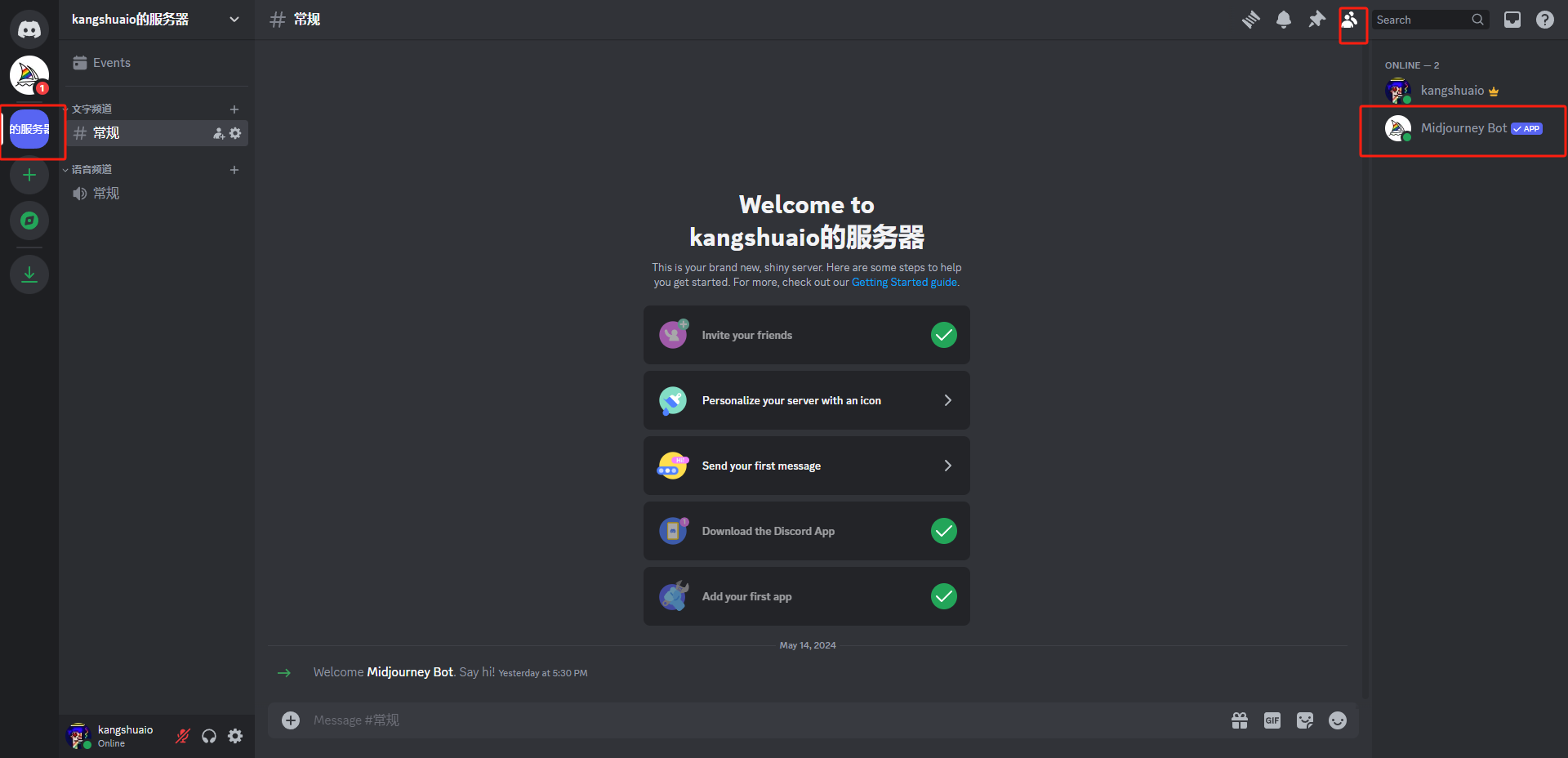
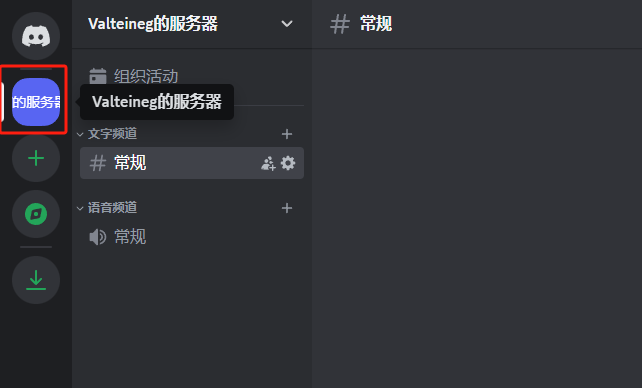
Make sure the Midjourney Bot has successfully joined your channel before you start the hosting setup.
Get the Discord Authorization token
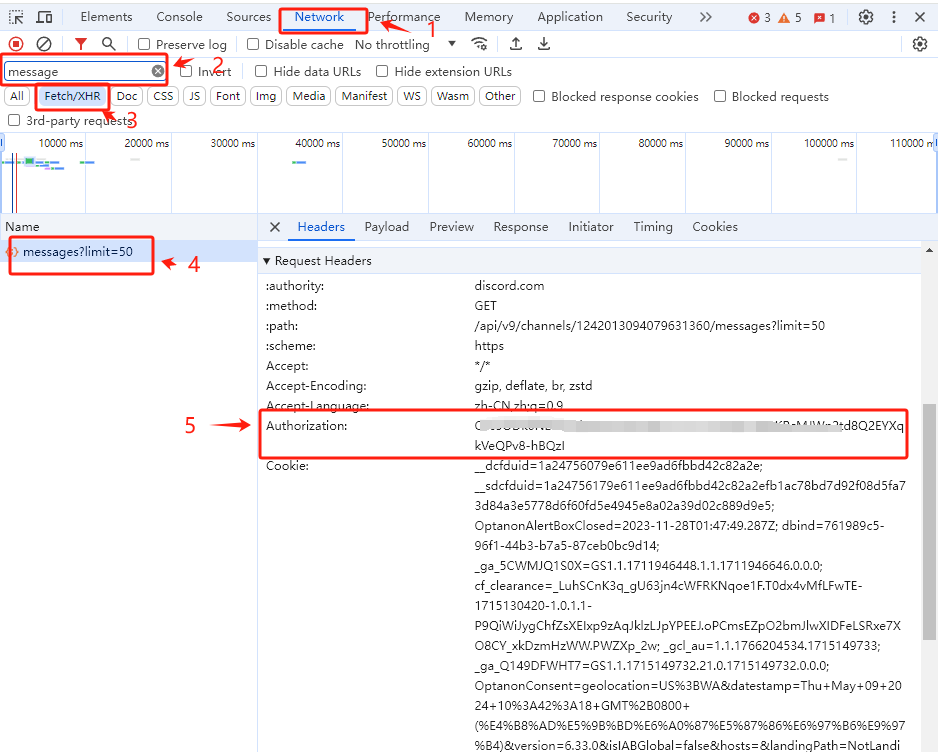
If you are familiar with browser devtools, this is simply theAuthorization header value from a Discord request.
Keep these points in mind:
- Do not log out of Discord after extracting the token, or it may become invalid
- It is safer to use an incognito browser window, then close it after setup is complete
- Sign in to Discord, create a private channel, and invite the Midjourney Bot
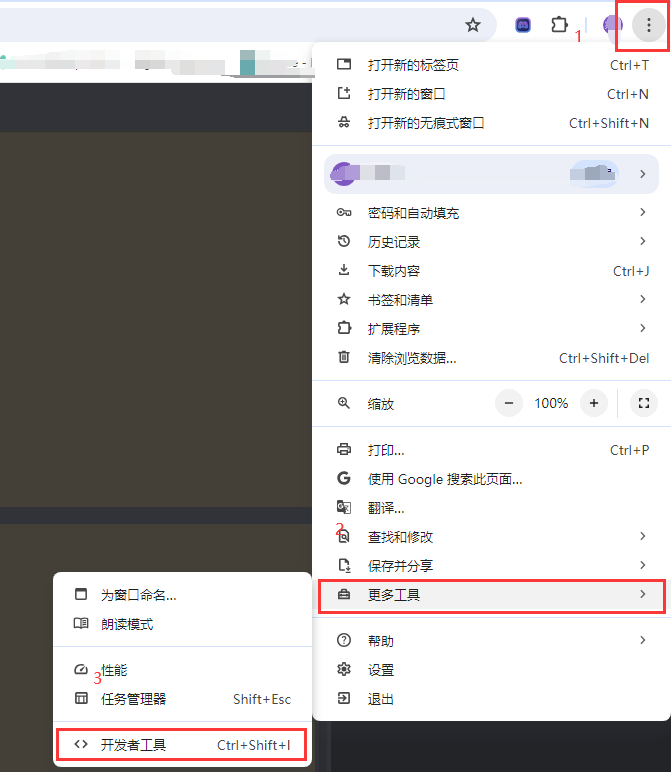
- Open the channel, then press
F12 - Open the
Networktab and search formessage - Switch to
Fetch/XHR - Click a request similar to
message?limit=50 - In
HeadersunderRequest Headers, copy theAuthorizationvalue
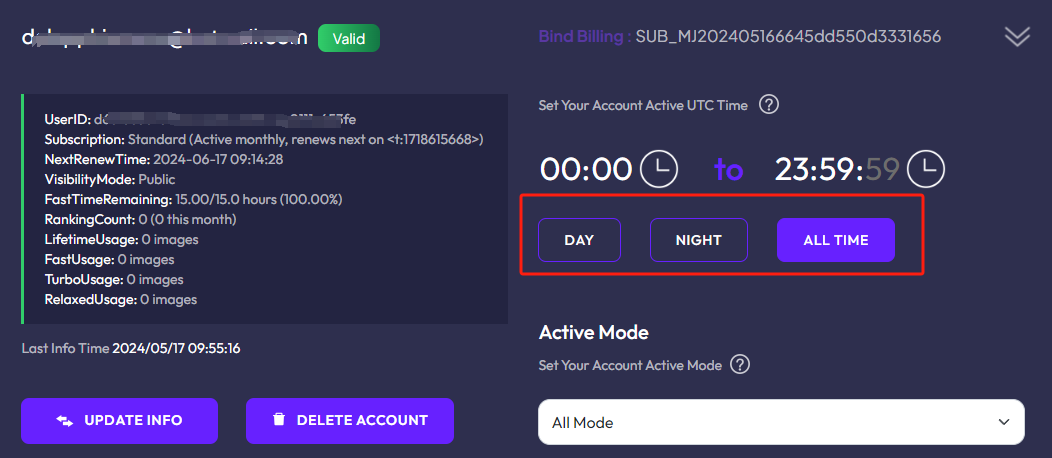
Execution window
When you expand the account details, you will see three time window options:DAY, NIGHT, and ALL TIME.
DAY: active during0-12UTCNIGHT: active during12-24UTCALL TIME: active during0-24UTC
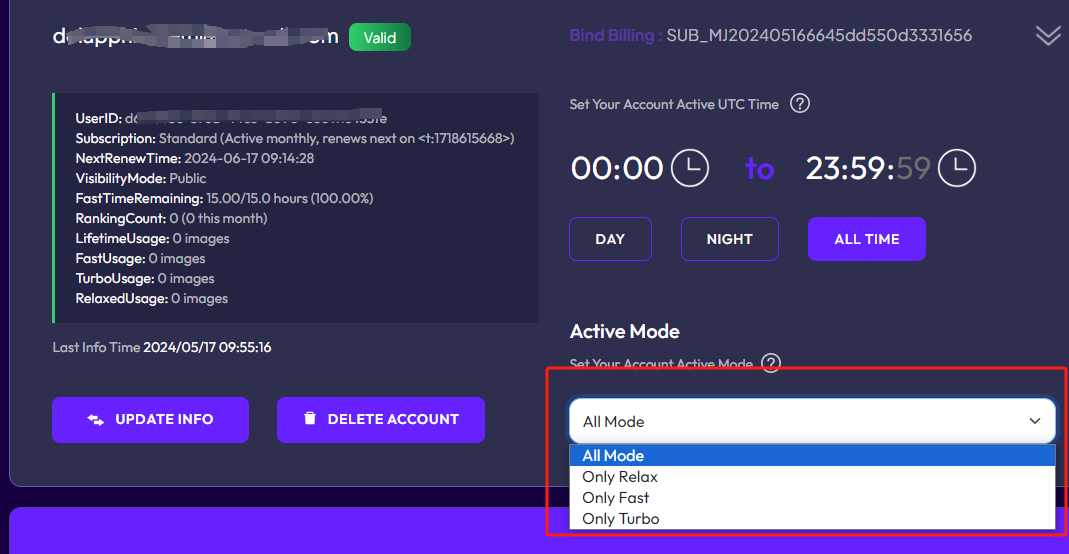
Execution mode
After an account is bound successfully, you can assign an execution mode. TTAPI then routes Midjourney requests to matching accounts based on the speed mode you use. Typical use case:- Some accounts are close to renewal but still have fast hours left
- You can set those accounts to
Only FastorOnly Turbo - This helps consume the remaining high-speed usage first
- When an account runs out of
fasttime, TTAPI automatically switches it toOnly Relax - After the next monthly renewal or after you buy extra time, switch it back manually if needed
Subscription, seat count, and usage planning
Cancel a subscription
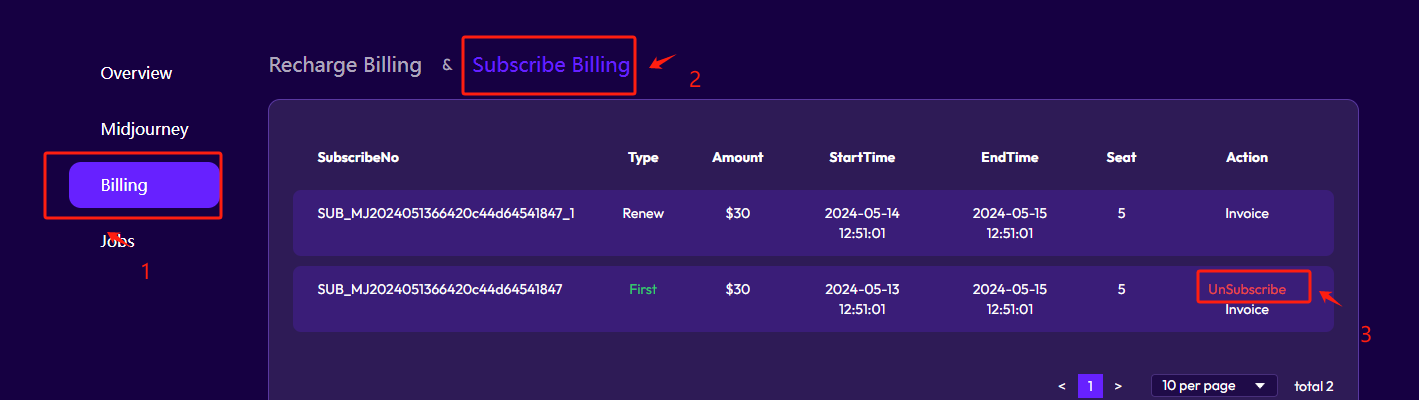
Inside the console:- Open
Billing - Go to subscription billing
- Find the active subscription
- Click
Unsubscribeif it is still active
Choose the right seat count
This depends mainly on two variables:- Which speed mode you use
- How often you run jobs
relax-only usage, hosting is usually not the best fit unless you already have a large number of stable low-cost accounts.
As a conservative rule of thumb:
- Keep
fastusage below about300images per account per day - Keep
relaxusage around150-200images per account per day - Spread traffic across multiple accounts instead of concentrating it on one account
fast usage in 24-48 hours, size your seat count around your daily volume and subscription plan.
Example:
- If you need about
10,000fastimaginetasks per day - A
$30plan may require around10hosted seats - Higher-tier plans can reduce the number of seats you need
Risk and captcha handling
Reduce account risk
There is no guaranteed formula, but the safer operating pattern is usually:- Avoid running one account at full load for long periods
- Spread jobs across multiple accounts
- Do not keep one account busy 24/7
- Leave headroom for spikes and account rotation
Popup captcha handling
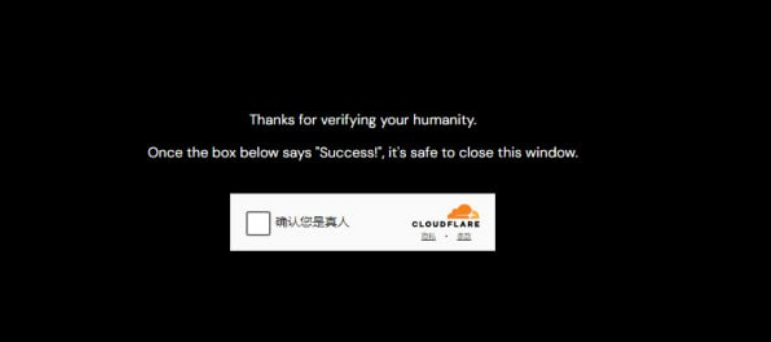
Since Midjourney introduced the newer popup verification flow, many users run into repeated human checks. TTAPI includes that handling inside the hosting service so hosted accounts can continue processing without manual intervention. Important notes:- This capability has a fixed operational cost
- Hosted pricing was adjusted from
$6 / account / monthto$9 / account / month - Existing subscribers on the older plan keep the original
$6 / monthpricing