> ## Documentation Index
> Fetch the complete documentation index at: https://docs.ttapi.io/llms.txt
> Use this file to discover all available pages before exploring further.
# Midjourney Account Hosting
> Setup notes and operational guidance for TTAPI Midjourney account hosting
This page covers the practical setup and usage details for TTAPI Midjourney account hosting.
## Before you start
Your Midjourney account must already have an active paid subscription.
You also need to create a Discord channel and invite the Midjourney Bot into that channel. You can follow the [official Midjourney guide](https://docs.midjourney.com/docs/invite-the-bot).
Once those steps are complete, you can bind the account in the TTAPI Midjourney hosting console.
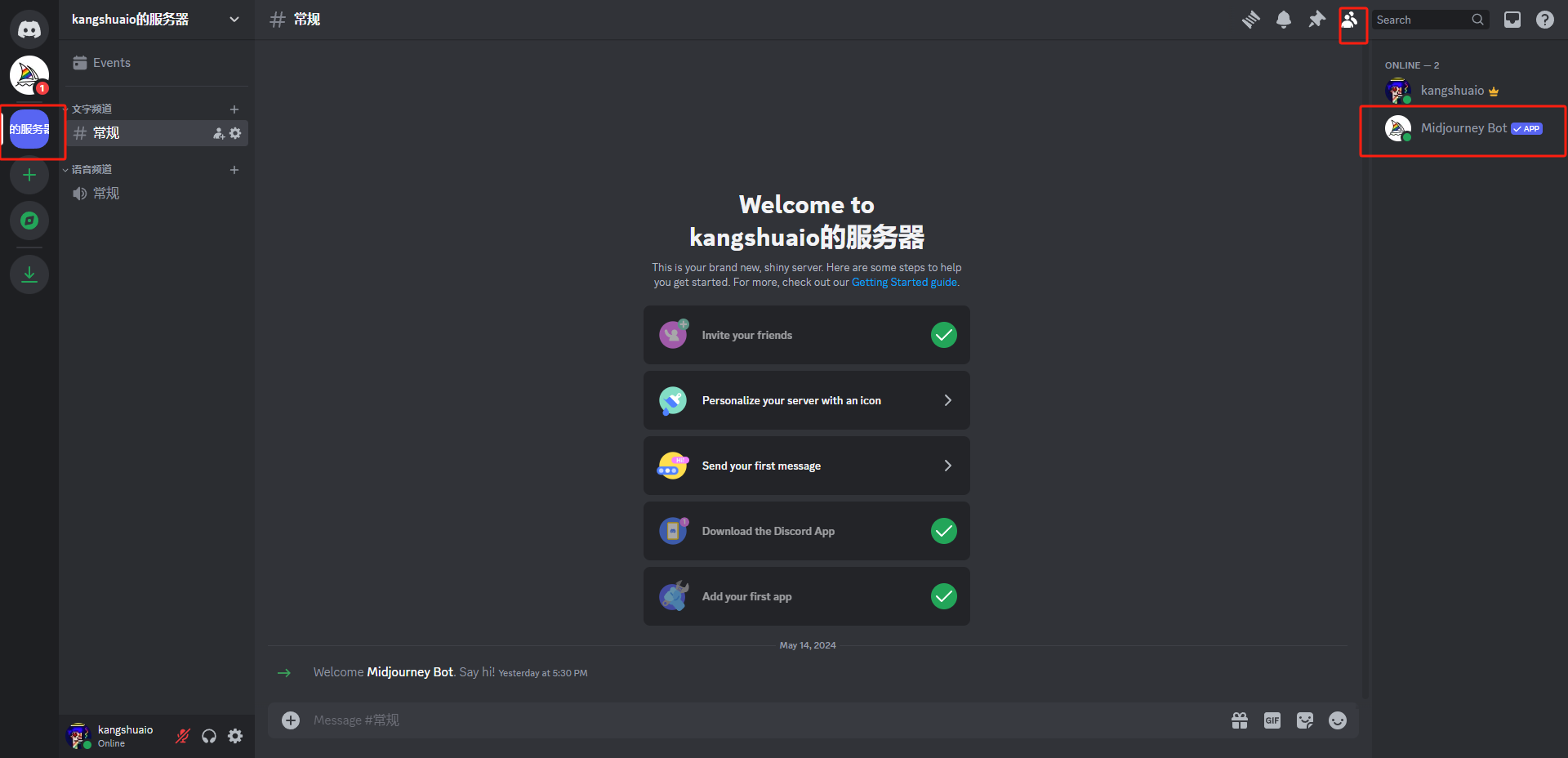
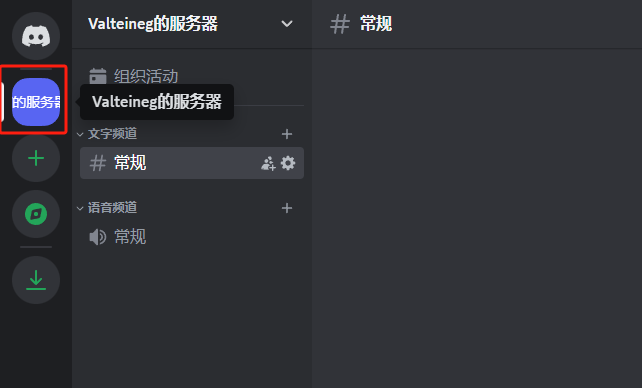 Make sure the Midjourney Bot has successfully joined your channel before you start the hosting setup.
## Get the Discord Authorization token
If you are familiar with browser devtools, this is simply the `Authorization` header value from a Discord request.
Keep these points in mind:
* Do not log out of Discord after extracting the token, or it may become invalid
* It is safer to use an incognito browser window, then close it after setup is complete
Using Chrome as an example:
1. Sign in to Discord, create a private channel, and invite the Midjourney Bot
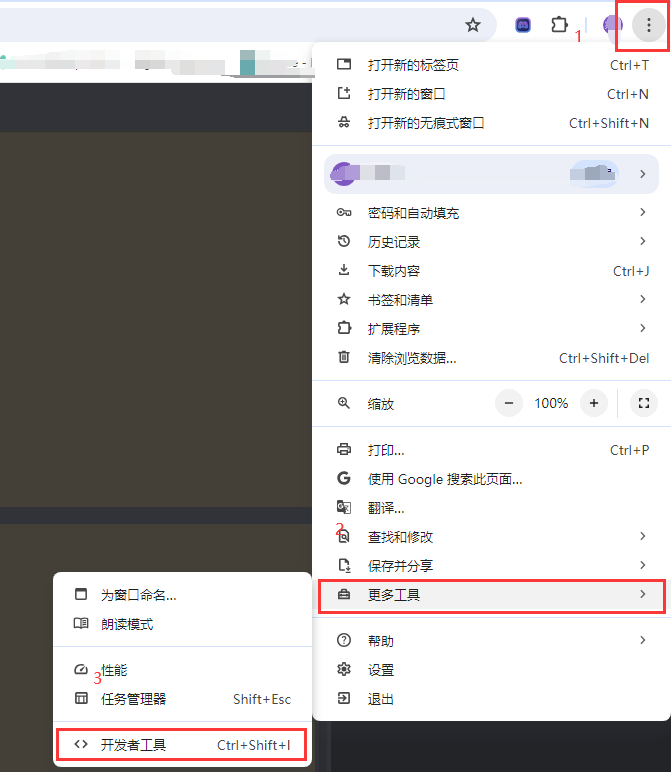
2. Open the channel, then press `F12`
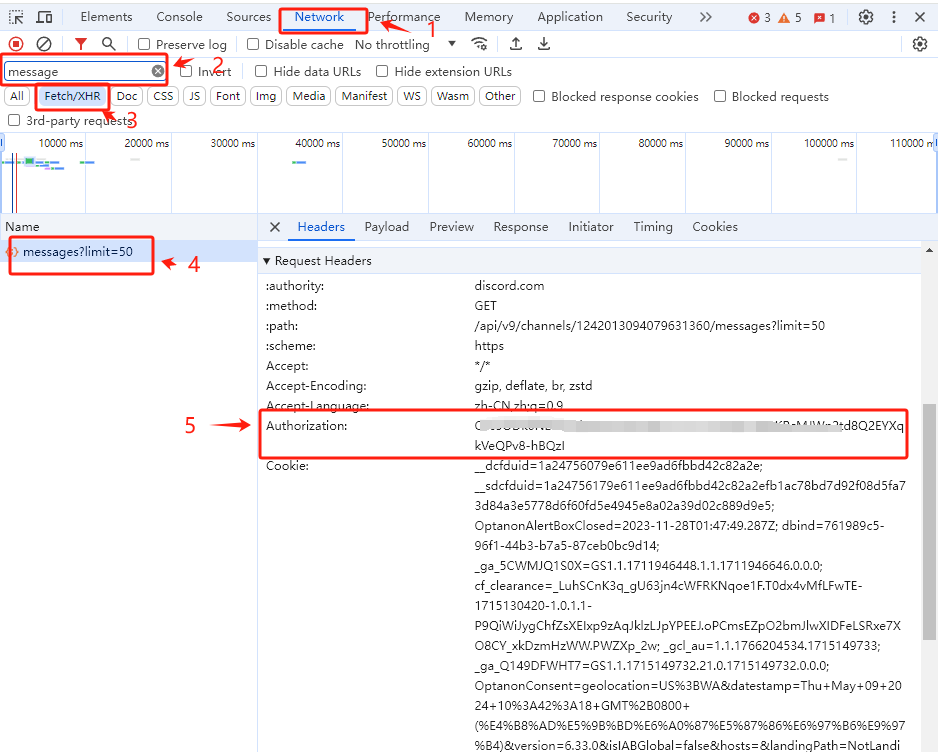
3. Open the `Network` tab and search for `message`
4. Switch to `Fetch/XHR`
5. Click a request similar to `message?limit=50`
6. In `Headers` under `Request Headers`, copy the `Authorization` value
Make sure the Midjourney Bot has successfully joined your channel before you start the hosting setup.
## Get the Discord Authorization token
If you are familiar with browser devtools, this is simply the `Authorization` header value from a Discord request.
Keep these points in mind:
* Do not log out of Discord after extracting the token, or it may become invalid
* It is safer to use an incognito browser window, then close it after setup is complete
Using Chrome as an example:
1. Sign in to Discord, create a private channel, and invite the Midjourney Bot
2. Open the channel, then press `F12`
3. Open the `Network` tab and search for `message`
4. Switch to `Fetch/XHR`
5. Click a request similar to `message?limit=50`
6. In `Headers` under `Request Headers`, copy the `Authorization` value
 ## Execution window
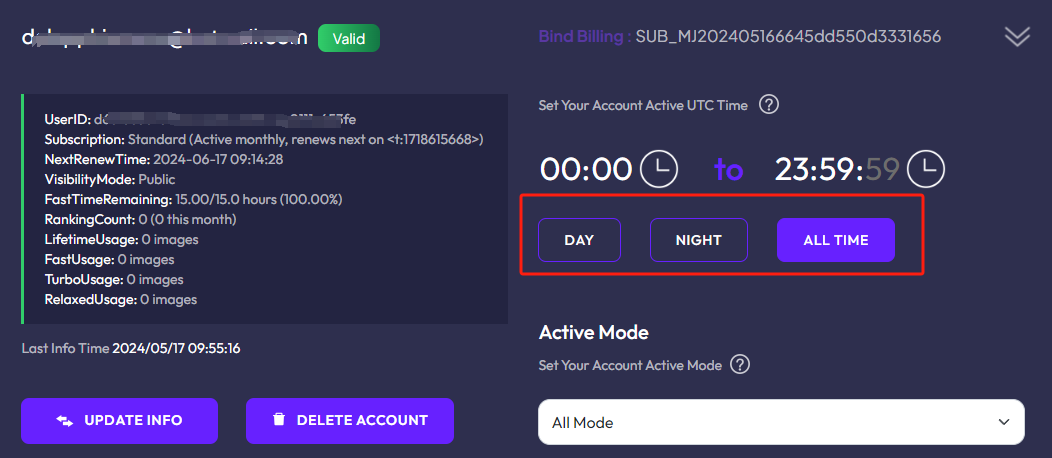
When you expand the account details, you will see three time window options: `DAY`, `NIGHT`, and `ALL TIME`.
* `DAY`: active during `0-12` UTC
* `NIGHT`: active during `12-24` UTC
* `ALL TIME`: active during `0-24` UTC
These settings are most useful when you rotate multiple accounts across different time windows. In most cases, it is better not to run a single account at full load for 24 hours a day.
## Execution window
When you expand the account details, you will see three time window options: `DAY`, `NIGHT`, and `ALL TIME`.
* `DAY`: active during `0-12` UTC
* `NIGHT`: active during `12-24` UTC
* `ALL TIME`: active during `0-24` UTC
These settings are most useful when you rotate multiple accounts across different time windows. In most cases, it is better not to run a single account at full load for 24 hours a day.
 ## Execution mode
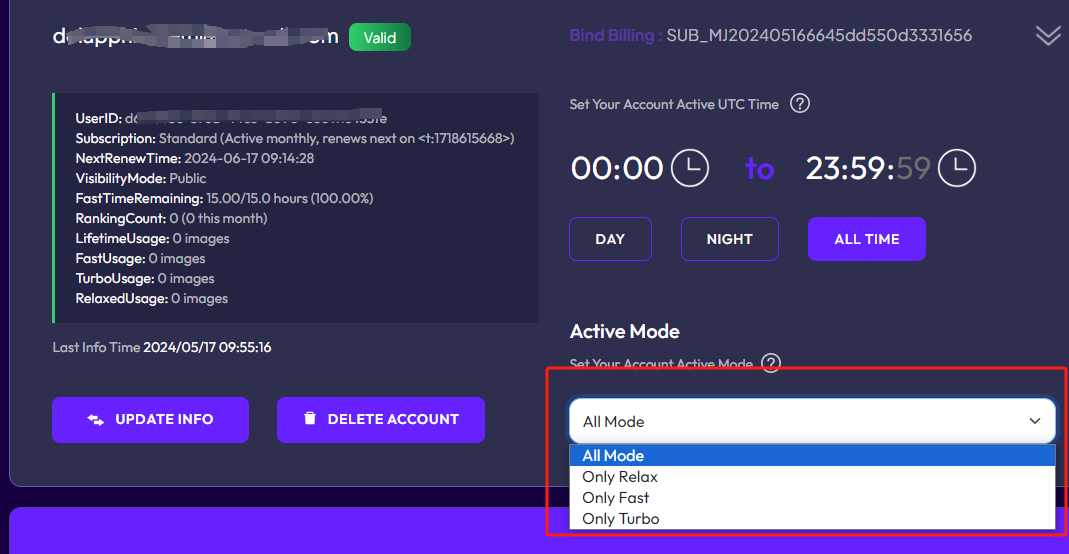
After an account is bound successfully, you can assign an execution mode. TTAPI then routes Midjourney requests to matching accounts based on the speed mode you use.
Typical use case:
* Some accounts are close to renewal but still have fast hours left
* You can set those accounts to `Only Fast` or `Only Turbo`
* This helps consume the remaining high-speed usage first
Also note:
* When an account runs out of `fast` time, TTAPI automatically switches it to `Only Relax`
* After the next monthly renewal or after you buy extra time, switch it back manually if needed
## Execution mode
After an account is bound successfully, you can assign an execution mode. TTAPI then routes Midjourney requests to matching accounts based on the speed mode you use.
Typical use case:
* Some accounts are close to renewal but still have fast hours left
* You can set those accounts to `Only Fast` or `Only Turbo`
* This helps consume the remaining high-speed usage first
Also note:
* When an account runs out of `fast` time, TTAPI automatically switches it to `Only Relax`
* After the next monthly renewal or after you buy extra time, switch it back manually if needed
 ## Subscription, seat count, and usage planning
### Cancel a subscription
Inside the console:
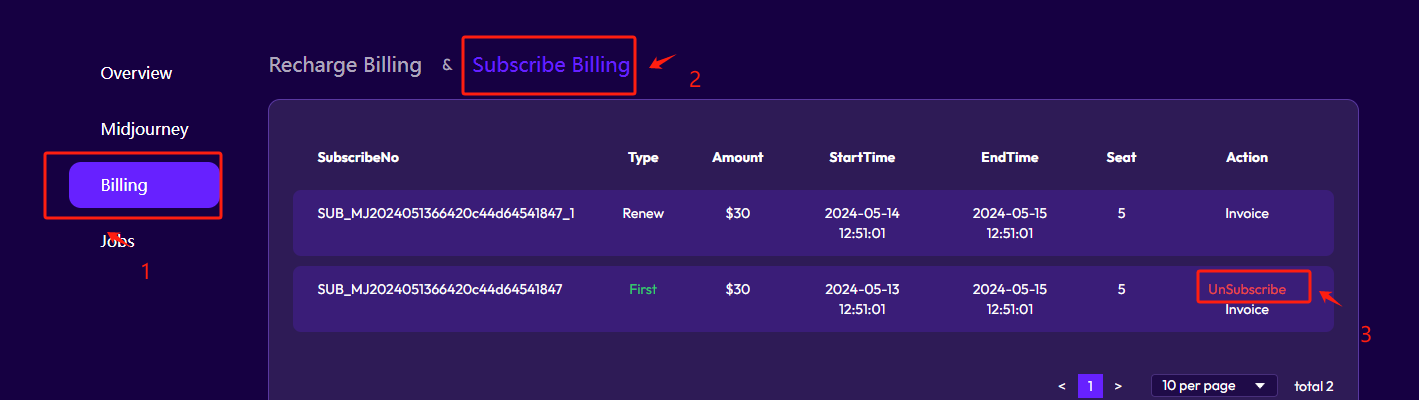
1. Open `Billing`
2. Go to subscription billing
3. Find the active subscription
4. Click `Unsubscribe` if it is still active
The account remains available until the current billing cycle ends. It simply will not renew for the next cycle.
## Subscription, seat count, and usage planning
### Cancel a subscription
Inside the console:
1. Open `Billing`
2. Go to subscription billing
3. Find the active subscription
4. Click `Unsubscribe` if it is still active
The account remains available until the current billing cycle ends. It simply will not renew for the next cycle.
 ### Choose the right seat count
This depends mainly on two variables:
* Which speed mode you use
* How often you run jobs
For `relax`-only usage, hosting is usually not the best fit unless you already have a large number of stable low-cost accounts.
As a conservative rule of thumb:
* Keep `fast` usage below about `300` images per account per day
* Keep `relax` usage around `150-200` images per account per day
* Spread traffic across multiple accounts instead of concentrating it on one account
If your workflow is more bursty and you want to burn through `fast` usage in `24-48` hours, size your seat count around your daily volume and subscription plan.
Example:
* If you need about `10,000` fast `imagine` tasks per day
* A `$30` plan may require around `10` hosted seats
* Higher-tier plans can reduce the number of seats you need
## Risk and captcha handling
### Reduce account risk
There is no guaranteed formula, but the safer operating pattern is usually:
* Avoid running one account at full load for long periods
* Spread jobs across multiple accounts
* Do not keep one account busy 24/7
* Leave headroom for spikes and account rotation
### Popup captcha handling
Since Midjourney introduced the newer popup verification flow, many users run into repeated human checks.
TTAPI includes that handling inside the hosting service so hosted accounts can continue processing without manual intervention.
Important notes:
* This capability has a fixed operational cost
* Hosted pricing was adjusted from `$6 / account / month` to `$9 / account / month`
* Existing subscribers on the older plan keep the original `$6 / month` pricing
### Choose the right seat count
This depends mainly on two variables:
* Which speed mode you use
* How often you run jobs
For `relax`-only usage, hosting is usually not the best fit unless you already have a large number of stable low-cost accounts.
As a conservative rule of thumb:
* Keep `fast` usage below about `300` images per account per day
* Keep `relax` usage around `150-200` images per account per day
* Spread traffic across multiple accounts instead of concentrating it on one account
If your workflow is more bursty and you want to burn through `fast` usage in `24-48` hours, size your seat count around your daily volume and subscription plan.
Example:
* If you need about `10,000` fast `imagine` tasks per day
* A `$30` plan may require around `10` hosted seats
* Higher-tier plans can reduce the number of seats you need
## Risk and captcha handling
### Reduce account risk
There is no guaranteed formula, but the safer operating pattern is usually:
* Avoid running one account at full load for long periods
* Spread jobs across multiple accounts
* Do not keep one account busy 24/7
* Leave headroom for spikes and account rotation
### Popup captcha handling
Since Midjourney introduced the newer popup verification flow, many users run into repeated human checks.
TTAPI includes that handling inside the hosting service so hosted accounts can continue processing without manual intervention.
Important notes:
* This capability has a fixed operational cost
* Hosted pricing was adjusted from `$6 / account / month` to `$9 / account / month`
* Existing subscribers on the older plan keep the original `$6 / month` pricing